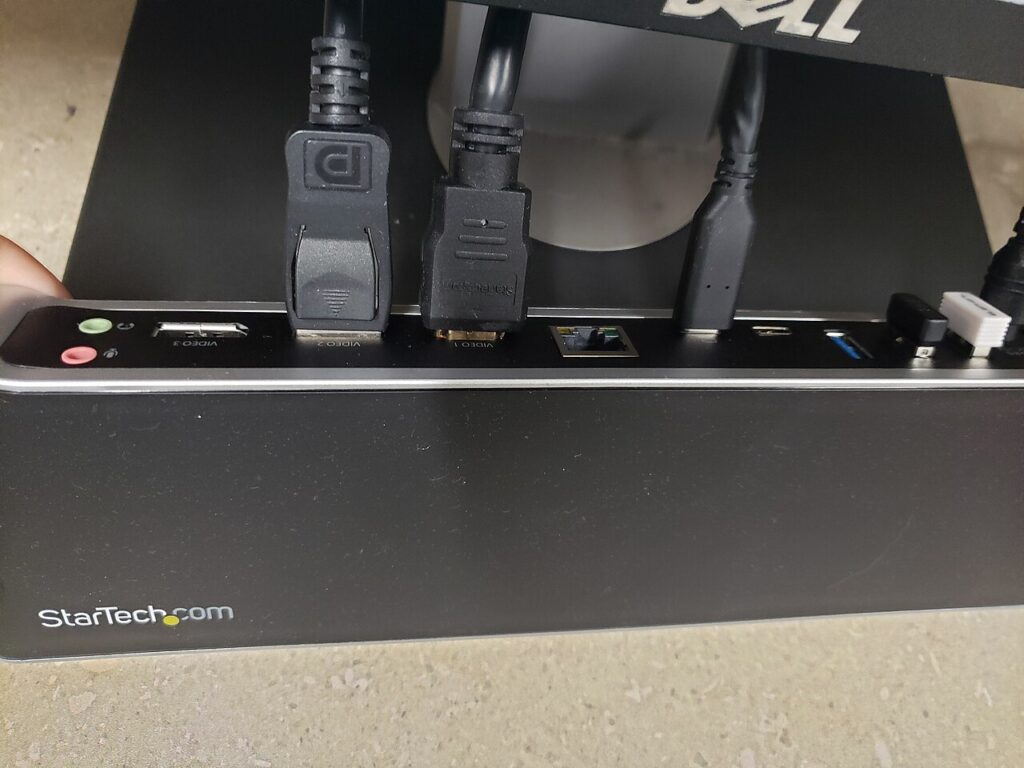

A hub and a docking station can both add connections, but the labels are inconsistent enough that they should not make the decision for you. The real question is what you want to connect simultaneously, how the host computer supports those connections, and whether the setup stays at a desk or travels in a bag. Build a connection list before comparing enclosures.
Products to consider
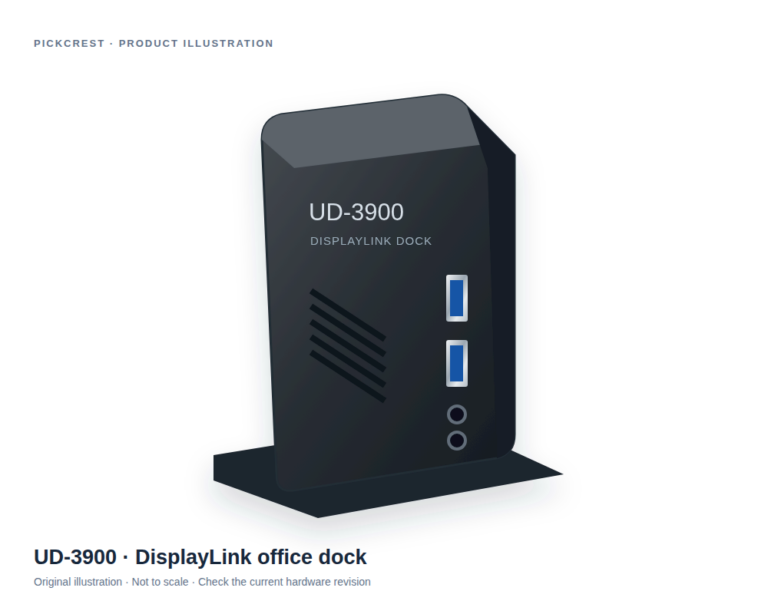
Plugable UD-3900 DisplayLink Office Dock
An office-oriented DisplayLink dock to consider when a documented multi-connection desk setup is needed. Verify your laptop, monitors, software permissions and exact hardware revision first.
Check on Amazon Paid link. I may earn a commission from qualifying purchases.Inventory the entire working setup
List the display inputs, keyboard, mouse, storage, Ethernet cable, and charger. Add the computer’s exact model and operating system. Mark which accessories need to work at the same time and which can be swapped. This turns a vague search for more ports into a concrete purchasing requirement.
Check the host documentation for video output, supported displays, data capabilities, and charging. Similar sockets can have different functions. An adapter using the host’s native video support and one using a software-based display system may have very different requirements despite sharing a USB connector.
Compare portable and permanent arrangements
A small hub can suit a laptop that moves between rooms or campuses. It is easier to pack, but attached cables may crowd a lightweight enclosure. Look at cable direction, port spacing, and where the unit rests. A hub that hangs from the laptop is a different physical arrangement from one supported on the desk.
A larger dock can consolidate a permanent workstation. It may need its own power adapter and leave several cables in place. That is useful when it reduces repeated setup, but less attractive if you clear the table every evening. Count the equipment and space the dock adds as well as the connections it provides.
Do not assume laptop charging
A dock’s external power supply does not prove it charges the host laptop. Check the stated host charging support and output. Some docks power their own electronics and attached accessories while the laptop still needs its original charger.
Plugable’s UD-3900 is a documented example: its manufacturer says it does not charge the laptop and uses DisplayLink for external displays. The current page positions it for office tasks and excludes gaming and protected streaming use. Those limitations matter more than calling it a universal dock.
Match software and display needs
Check whether drivers or permissions are required and whether your employer permits them. Save the current compatibility list for your operating system. A purchase that depends on software installation can be unsuitable for a managed computer even when its hardware connection fits.
For each display, verify the actual resolution and refresh rate supported in the full configuration. Do not combine the highest figures from different modes into a capability the manufacturer never documents. For gaming or media, check protected-content and application limitations explicitly.
Choose the smallest complete solution
Compare the total arrangement: hub or dock, power adapter, required cables, and any separate laptop charger. A cheap-looking hub that needs several additional purchases can be less convenient than a better-documented alternative. Conversely, a large dock adds little when you only need one card reader.
Choose a solution that covers your present simultaneous-use list with clear compatibility evidence. The related product cards provide research-based examples from the verified registry, not hands-on rankings. Check the current manufacturer documentation and exact listing variation before ordering.
Sources
Based on the manufacturer and primary-source references below, checked November 12, 2026.
Continue with our smarter shopping field guide and explore more computers accessories guides. Read our editorial policy for sourcing and corrections.