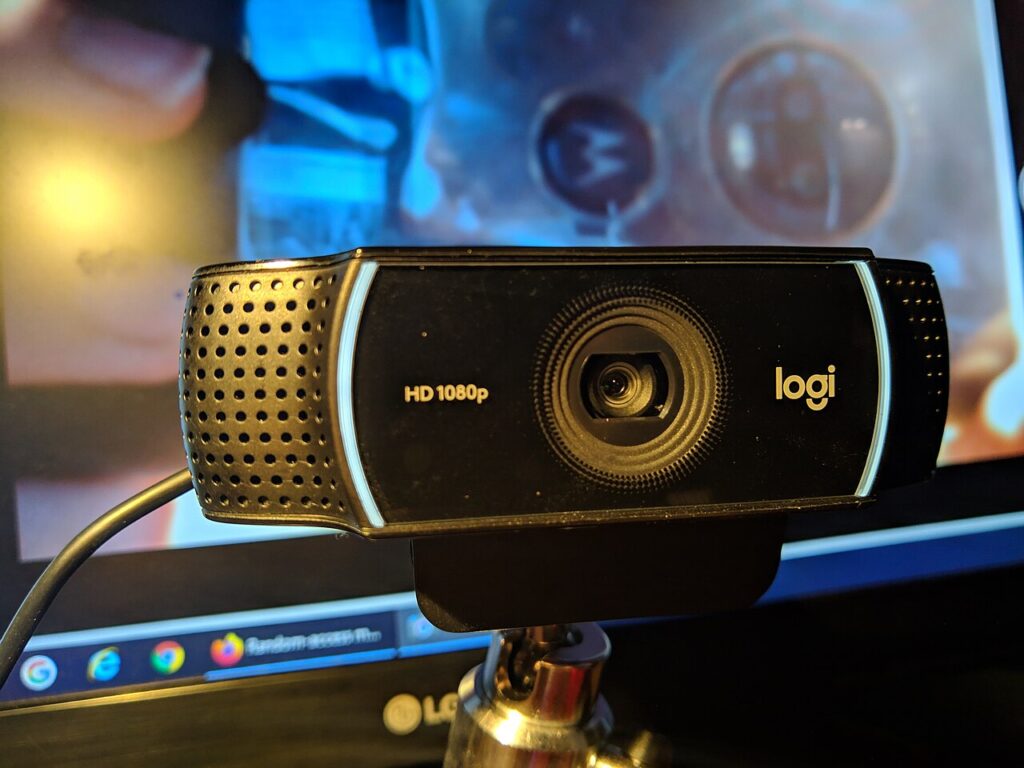

A webcam upgrade makes the most sense when the built-in camera has a specific limitation: awkward positioning, a framing problem, or controls that do not suit your meetings. Try changing the room and laptop position first. Then choose a camera that solves the remaining issue without introducing a complicated mount or software requirement your work computer cannot support.
Start with framing and placement
Decide whether the camera should show one person, a pair of people, or a wider room. Read the field-of-view specification and whether framing adjustments require software. A wide view can show more of the room than you want; a tight view can be inconvenient when two people share a call.
Measure the monitor edge or laptop lid where the camera will sit. Check the mount, cable route, and whether the camera blocks the display or lid movement. A tripod connection can help on a desk but takes space and may need an accessory that is not included.
Read resolution and frame rate together
Compare the supported resolution and frame rate as a pair. Do not combine the highest resolution from one mode with the highest frame rate from another. Also check the meeting application and connection requirements; the camera specification is only one part of the actual call.
A higher resolution is not a complete image-quality guarantee. Room lighting, lens behavior, camera position, and software processing still matter. Look for evidence using a setting similar to yours rather than assuming a specification upgrade automatically improves every meeting.
Treat lighting as part of the setup
Notice bright windows behind you and overhead light that creates strong shadows. Experiment with seating and existing lamps before adding more equipment. If you buy a separate light, check mounting space, reflections in glasses, and the ability to adjust its direction.
Manufacturer documentation may describe exposure or light correction, but it does not remove the need for a workable room arrangement. Keep claims about a particular model limited to its actual documentation or credible observations.
Separate the microphone decision
A webcam can include microphones without being the best audio choice for your room. Decide whether you already have a suitable headset or microphone. Check how the meeting software selects inputs so the intended device is used consistently.
For privacy, distinguish a physical lens cover from microphone muting or software permissions. A cover blocks the camera’s view; it should not be treated as a universal audio control. Choose controls you can understand during a call without opening several applications.
Check software before ordering
Read operating-system support and whether any desired setting depends on a companion app. Managed computers may restrict installations, permissions, or automatic updates. Confirm those requirements with your workplace before buying a camera around an unavailable feature.
Logitech’s published webcam documentation illustrates the separate specifications for framing, resolution, shutter, and software. Shortlist a camera with a documented mount, compatible connection, and a clear improvement for your actual meeting setup.
Sources
Based on the manufacturer and primary-source references below, checked November 12, 2026.
Continue with our smarter shopping field guide and explore more computers accessories guides. Read our editorial policy for sourcing and corrections.