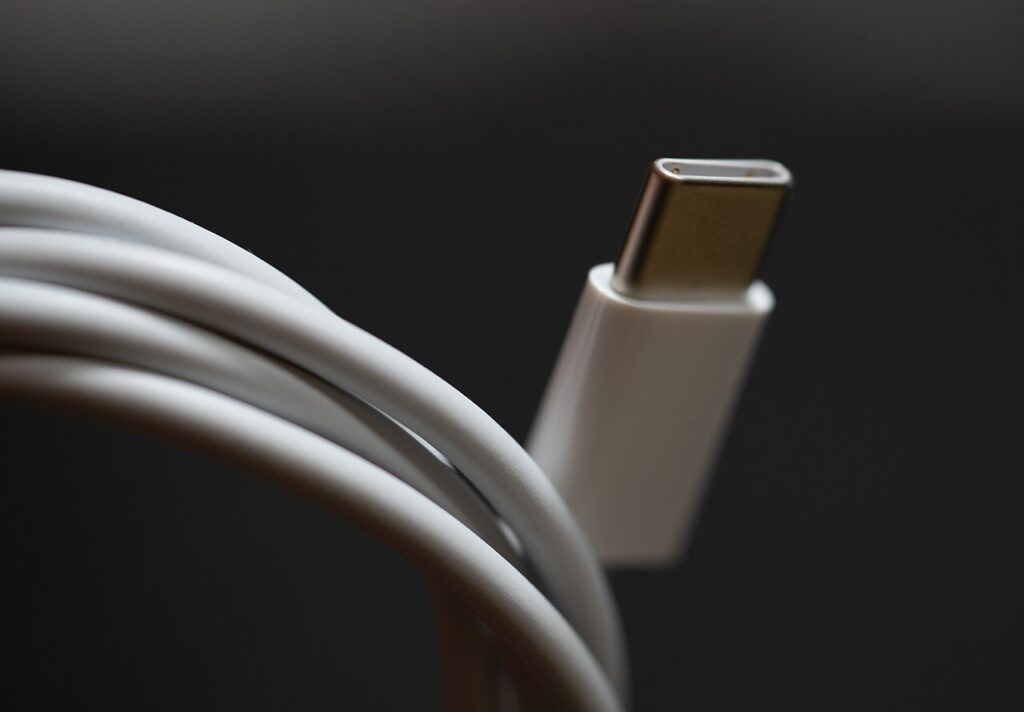

USB-C cables can look interchangeable in a drawer while doing very different jobs. One might charge a phone, another might transfer a large photo folder, and another might support a display connection. Choose the task first. Reading power and data capabilities separately is more useful than buying the cable with the most impressive-looking connector or the thickest jacket.
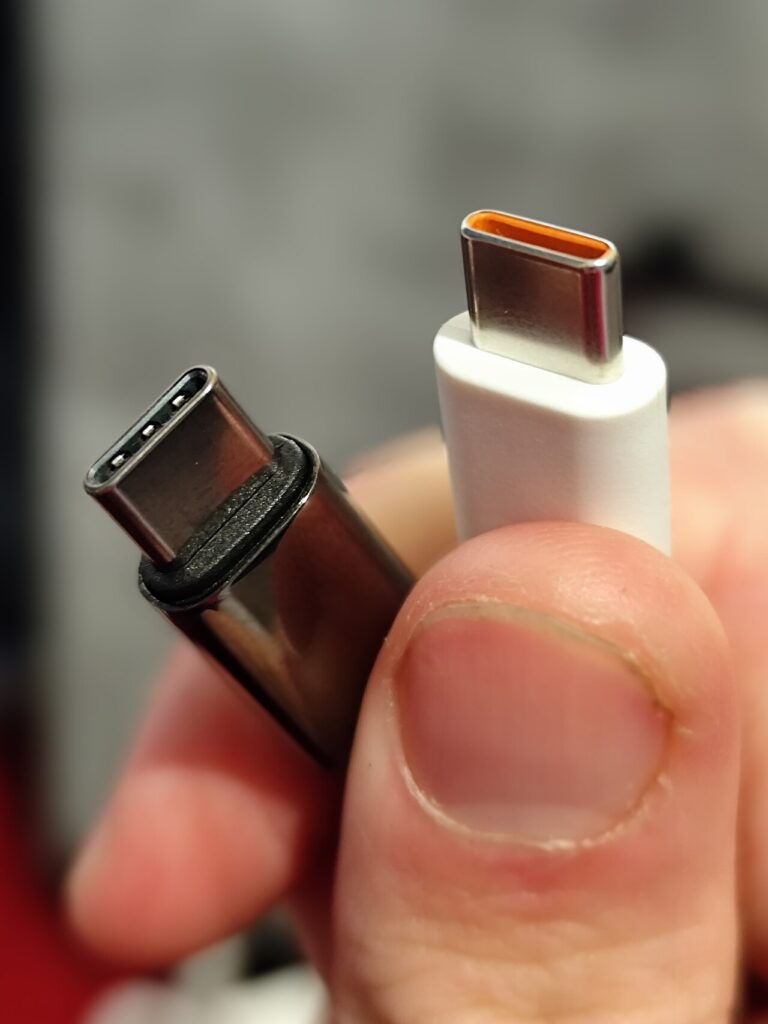

Separate the connector from its capabilities
USB-C describes the connector family. It does not, by itself, tell you the cable’s data rate, supported charging power, or suitability for a display. The devices on both ends also need to support the function you want. A capable cable cannot add a display output to a host that lacks it.
Write a short label for the intended use: phone charging, laptop charging, SSD transfer, or monitor connection. If one cable must cover multiple jobs, verify every requirement explicitly. A vague claim such as universal compatibility is a reason to look for a detailed specification sheet.
Read power ratings in context
Compare the cable’s documented power support with the charger and device requirements. Do not infer a power rating from thickness, braided fabric, or an LED display. USB-IF documentation explains how power and performance markings distinguish certified cable capabilities, but markings should agree with the exact product’s documentation.
For a laptop, keep the original charging requirements in your notes. For a phone, check the manufacturer’s charging instructions rather than assuming the largest supported cable rating will make charging faster. A cable’s maximum capability and the device’s actual charging behavior are separate questions.
Match the data path end to end
An external drive’s advertised speed depends on more than its enclosure. The host port, cable, drive, and workload all affect the connection. Compare the specific supported data operation at each point, and check whether a hub introduces another limit. A cable sold mainly for charging may be adequate for power but unsuitable for the transfer performance you want.
For a display, confirm the host’s video support and the monitor or adapter’s cable requirements. Do not interpret a data-speed claim as a complete video compatibility statement. Keep the display manufacturer’s recommended connection path alongside the cable specification.
Let length and routing shape the choice
Measure the distance with the devices in their working positions. Leave enough slack to move a laptop without pulling a monitor or drive. Avoid buying excess length simply because it seems more versatile; extra cable can become another item to manage on a small desk.
Right-angle connectors can help in a specific layout, but their orientation may conflict with adjacent ports or a protective case. Compare the connector housing dimensions as well as the cable length. A slim plug that clears your setup is more useful than an elaborate connector that obstructs another accessory.
Label cables after verifying them
Use a removable label or pouch division to distinguish charging, storage, and display cables. Record the manufacturer and model so a replacement can be matched later. If a setup stops working after a cable swap, those notes give you a straightforward first check.
Choose a seller with clear specifications and return terms.
Sources
Based on the manufacturer and primary-source references below, checked November 12, 2026.
Continue with our smarter shopping field guide and explore more tech guides. Read our editorial policy for sourcing and corrections.