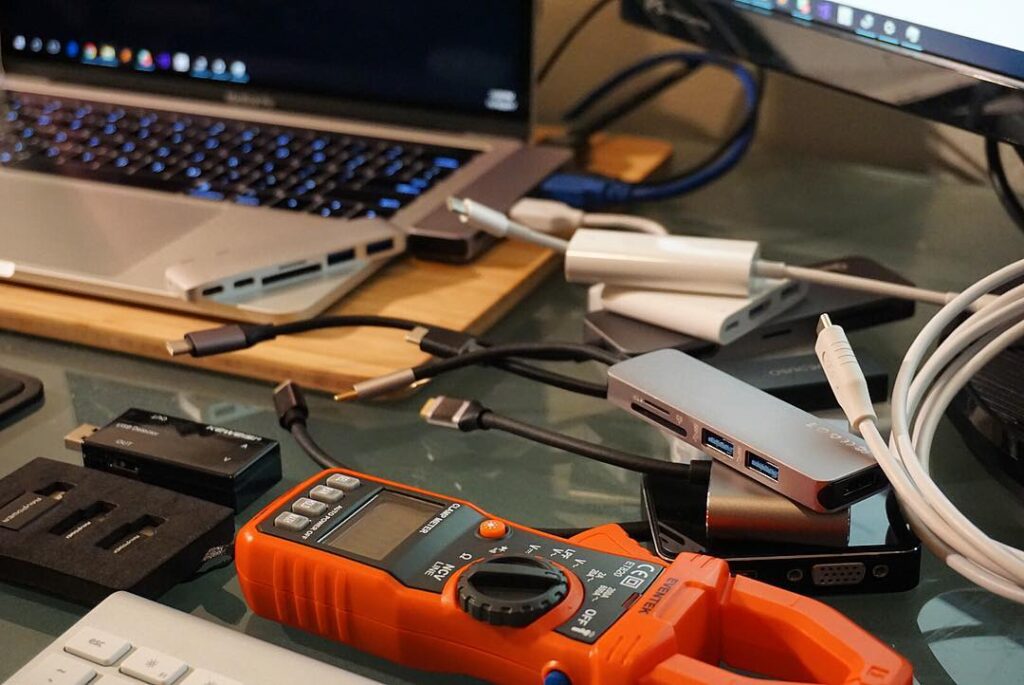

USB-C can make a bag of cables simpler, but the connector’s shape is not a complete specification. A cable, adapter, charger, or dock should be chosen for the task you want to perform and the capabilities of the devices at both ends. Start with the equipment you already own.
Products to consider
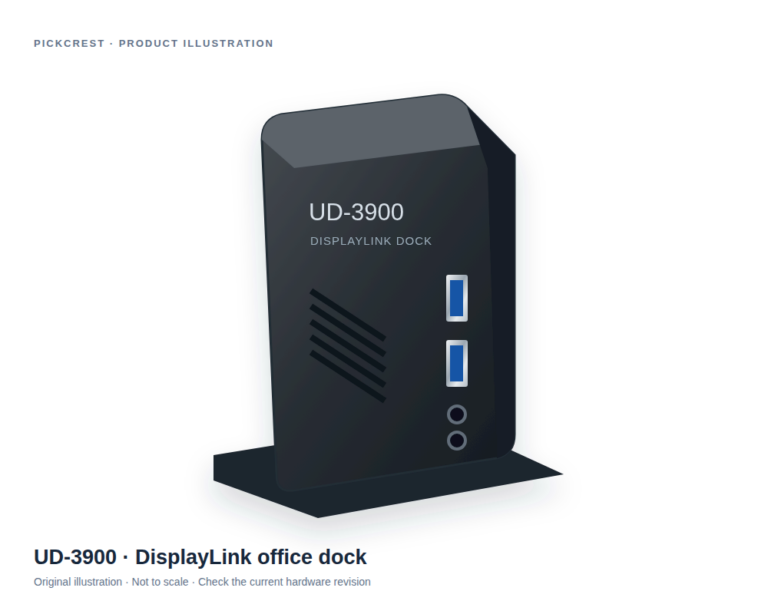
Plugable UD-3900 DisplayLink Office Dock
An office-oriented DisplayLink dock to consider when a documented multi-connection desk setup is needed. Verify your laptop, monitors, software permissions and exact hardware revision first.
Check on Amazon Paid link. I may earn a commission from qualifying purchases.Make a connection checklist
Write down your computer or phone model, the accessories you want to use, and whether you need charging, data transfer, display output, or several tasks at once. Look up each device’s documented port capabilities.
The USB-IF terminology guidance distinguishes connector naming from performance capabilities. Use clear manufacturer specifications to compare accessories rather than assuming all Type-C ports or cables provide the same functions.
Cables: read the power and data information separately
A charging cable may not be the right choice for a high-bandwidth data task or an external display. Check the listed power rating, supported data operation, and any stated video requirements. Length and connector placement also affect how a cable fits your setup.
Buy a cable for a known job and label it if you keep several similar ones. That can prevent a suitable charging cable from being mistaken for a cable intended for a different task. Avoid using visibly damaged cables or connectors.
Chargers: look at the whole device combination
Check the device manufacturer’s charging requirements, the charger’s supported outputs, and the cable requirements. If you plan to charge several devices, read how the charger allocates output across ports when more than one is in use.
A small charger can be convenient for travel, but size alone does not establish compatibility. The USB-IF Power Delivery overview provides background on the standard; the exact charger and device documentation remains the basis for a purchase.
Hubs and display adapters: check the host first
An adapter cannot provide a host function that the connected computer does not support. Confirm display output support, operating system requirements, resolution and refresh-rate limits for the intended combination, and whether additional software is required.
Count the ports you need simultaneously, then check the layout. A wide connector may block a neighboring socket. A hub’s own power needs can also affect the overall charging arrangement, so read the complete specifications.
Keep a simple accessory record
Save model numbers and documentation links for cables, chargers, and adapters. Include the task each item was purchased to handle. If a setup stops working, those notes can make it easier to identify a changed cable or a missed compatibility limit.
Choose an adapter by its missing function
If Ethernet is the only missing connection, a dedicated adapter may be easier to understand than a large hub. If an external display and several peripherals need to work at once, compare a dock arrangement. Either choice should be based on documented host support, a practical cable route, and the actual package contents.
A DisplayLink office dock and a wired network adapter do not solve every USB-C requirement. Check their limitations before treating them as substitutes for a display cable, charger, or another adapter already in your kit.
Sources
Based on the manufacturer and primary-source references below, checked November 12, 2026.
Continue with our smarter shopping field guide and explore more tech guides. Read our editorial policy for sourcing and corrections.